
-
Configuring the Appliance Tester
The TnT® G4-Series is connected to a computer VIA a USB cable. Software drivers will need to be installed from the WinPATS CD for the appliance tester to communicate with the computer correctly.
Before installing any software driver please make sure the USB cable is not plugged into the computer.
Insert the WinPATS™ CD and wait for the auto start menu to appear. Please click the link from the CD main menu to install driver:
TnT USB Driver
This communications method is used in all modern TnT appliance tester.
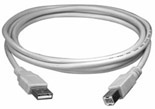
USB cable
(Discontinued)
Prolific USB to Serial Driver
For previous models of TnT testers, download the driver from here:
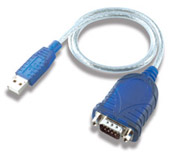
Prolific USB to Serial PL2303
Follow the installations steps and complete the setup program. Connect the appliance tester to the PC and make sure the appliance tester is powered on. When this is done Windows will discover the new USB device.
Configuring WinPATS
In WinPATS options (Click File->Options) make sure auto detect is ticked when trying to connect for the first time. The auto detect will make WinPATS auto configure itself to communicate with the appliance tester. This feature is available in versions 3.11.3 or greater. Once the COM port number has been discovered it will remember this for next time. If you are having WinPATS communication issues it is advisable to fill out the online support form to obtain the latest version.
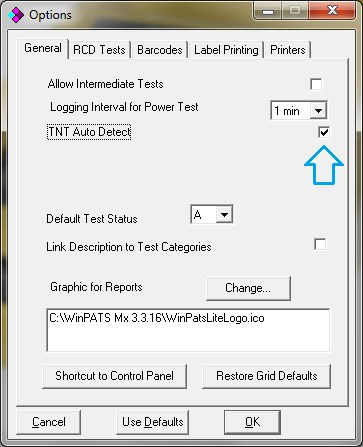
If you receive the following message when trying to communicate with the appliance tester:
- None of the selected COM ports are available
- COM port already open
Please check that the COM port driver is configured correctly in device manager. Follow the instructions to get to device manager depending on the operating system. The following will need to be done if you have an older version of WinPATS or the auto detect in the new version did not work.
Windows 7
- Click the start icon.
- Type device manager in in the search field.
- Click device manager in the searched items.
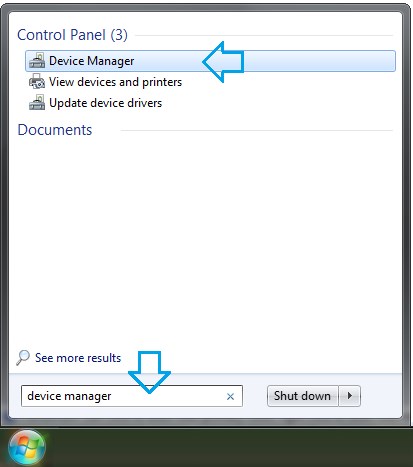
Windows 8
- From the Start screen, swipe up and tap the All apps icon.
- Once on the Apps screen, scroll or swipe to the right until you see the Windows System heading.
- Tap or click on Control Panel, located under Windows System.
- Tap or click on the Hardware and Sound link.
- In the Hardware and Sound window, click or tap Device Manager, located under the Devices and Printers heading.
Or keyboard users:
- Press the Windows key (located next to Ctrl and Alt) and X keys together to access the power users menu.
- Select device manager from the list.
Device Manager
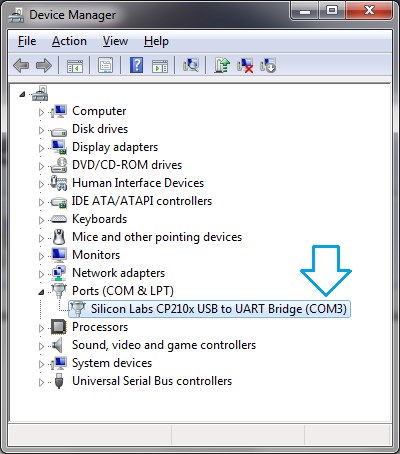
For the appliance tester to work correctly with the computer the following must be correct:
- Silicon Labs CP210x device must be listed under ports. If it's listed anywhere else then there has been a problem with the driver installation.
- There must be no exclamation marks on the device names. This also indicates a incorrect installation.
- The COM port number (shown by the arrow) must be less than 16. If the COM number is greater see instructions below.
Adding the COM Number (Older Versions)
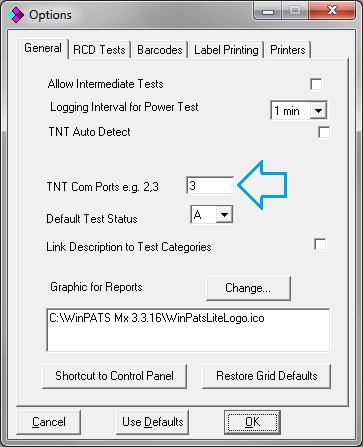
If you are using an older version of WinPATS and the auto detect does not exist you will need to do the following:
- Take note the COM port number as shown above
- In WinPATS open File->Options.
- Place this number into the TnT COM port number box.
Only this number should be entered. If any other numbers existing the TnT COM port number box remove them first.
Reconfigure the COM Number
Windows assigns the COM number by the next available COM port and sometimes the assigned number can be greater than 15. If this occurs the number will need to be manually lowered. To do this:
- Right click on the Silicon Labs CP210x device and select properties.
- Click the port settings tab and then advanced button.
- Select a different number from the COM port number drop down box. Try COM 2 or COM 1 if available.
- Click OK to exit and assign the new number.
Restarting USB Connection
In rare cases the appliance tester will not respond in WinPATS even when the USB device is configured correctly in Device Manager. This can occur after performing a number of tests on the appliance tester. To restart the USB device:
- Close any communication or testing windows in WinPATS. The WinPATS program can remain open.
- Unplug the USB cable to the appliance tester from the computer side.
- Wait 10 seconds and plug the cable back into the USB port.
- Retry the communications or test being performed.
If this procedure still does not work, try repeating it and switch the appliance tester off then after step 2.
Note: The appliance tester will only communicate with WinPATS if the appliance test is on the Main Menu or New Barcode screen. These are the default screen from power on depending on the tester mode.
Configuring the Appliance Tester