
-
Reports
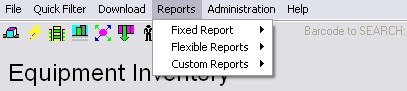
WinPATS™ currently supports three kinds of reports;
i. Fixed reports are standard reports with fields and formats fixed.
ii. Flexible reports allow the user to select fields and adjust the width of each individual field.
iii. Custom reports allow the customization of format, the inclusion of logo(s) and various user specific information.
Note. When generating a report for the first time make sure that the report preview looks correct. Reports can be displayed incorrectly if the Windows printer is the wrong type or set incorrectly. For example if the default printer is set to a non A4 paper size the report preview will come out differently than the A4 preview. All reports are based on the A4 paper size.
If no windows printer installed and the report preview is correct then leave it as it is. If there is a problem please install a printer in printers and faxes. You don't have to have a physical printer just the printer driver installed on the computer that can print A4. Please make sure the printer is configured correctly in WinPATS options.
Printing Reports
To print a report:
- Generate a report from the reports menu.
- Click on
 icon
icon - Check the printer is the correct default printer.
- Choose the page range. All or specific pages. Select the number of copies to print. Click Ok.
Exporting Reports
Exporting reports allows the generated report to be saved in 16 common file formats. From here the report can saved as a file for safe keeping or sent to the client. Using the export function may be preferable to save many pages of paperwork.
Tip. Flexible reports allow reports to generated in a variety of ways. The report may not be exactly what you are looking for. If so, then the report can be exported to a common word processing software and be modified. For example, once the report is exported a company logo can be added to the top of the report.
To export a report:
- Generate a report from the reports menu.
- Click on the
 icon
icon - Choose the file format required and leave destination as disc file.
- Select the page range, all or specific range.
- Choose the save location, click on the save in drop down box and choose the drive and folder. Enter a name for the file in the file name box.
Reports